Introduction: What Are Google AI Overviews and Why You Need Them
Google AI Overviews is one of the most useful features Google Search has released in years.
If you haven’t seen them yet, here’s what they do:
When you search for something, instead of just getting a list of blue links, Google shows you a summary box at the top. This box gives you the answer directly, pulled from multiple sources and written by AI.
Example searches where AI Overviews help:
- “How to fix a leaky faucet” – Shows steps to fix it
- “Best pizza in Denver” – Shows options with ratings
- “What is photosynthesis” – Explains the concept clearly
- “iPhone 15 vs Samsung Galaxy” – Compares the phones
The AI Overview saves you 5-10 minutes of reading. You get the information you need immediately.
But here’s the thing: AI Overviews aren’t turned on for everyone by default.
Depending on your location, device, and Google account settings, you might not see them. This guide shows you exactly how to turn them on.
Part 1: Check If You’re Eligible for Google AI Overviews
Not everyone can access AI Overviews yet. Google is rolling it out gradually.
Where AI Overviews Are Available
AI Overviews are currently available in:
Countries/Regions:
- United States
- Canada
- United Kingdom
- Australia
- India
- Japan
- Brazil
- Mexico
- Most of Europe
- And 100+ other countries
Languages:
- English
- Spanish
- French
- German
- Portuguese
- And 30+ other languages
Check Your Eligibility
- Go to Google.com
- Search for something like “how to bake cookies”
- Look at the top of search results
- Do you see a box with an AI-generated summary? If yes, you’re eligible.
If you don’t see it, check:
- Your country/region
- Your Google account settings
- Your browser settings
- Your device type
Part 2: How to Turn On Google AI Overviews (By Device)
On Desktop/Computer
Step 1: Open Google Chrome or your browser
- Google AI Overviews work best in Chrome, but also work in Safari, Firefox, and Edge
Step 2: Go to Google.com
- Make sure you’re logged into your Google account
Step 3: Search something that triggers an AI Overview
- Search: “best laptop for work” or “how to learn programming”
- Not every search shows an AI Overview. Google only shows them when it thinks they’re helpful.
Step 4: Look for the AI Overview box
- It appears at the top of search results
- It says “AI Overview” at the top of the box
- It has a summary of the answer
- It includes links to sources
If you don’t see it: AI Overviews might not be available in your region yet, or your settings are preventing them from showing.
On Mobile (iPhone/Android)
Step 1: Open the Google Search app or go to Google.com in your browser
Step 2: Make sure you’re logged in
- Tap your profile picture in the top right
- Sign in if needed
Step 3: Search for something that would benefit from an AI Overview
- “Best restaurants near me”
- “How to fix phone battery drain”
- “What’s the weather tomorrow”
Step 4: Look for the AI Overview box
- On mobile, it appears right below the search bar
- It might be slightly different on different phones
If you still don’t see it: Continue to Part 3 (Troubleshooting)
Part 3: Troubleshooting – Why You’re Not Seeing AI Overviews
If you’re not seeing AI Overviews, follow these steps:
Step 1: Verify Your Location
AI Overviews aren’t available everywhere yet.
Check:
- Go to Google.com
- Scroll to the bottom
- Click your country (bottom left)
- Is your country listed?
If your country isn’t listed: AI Overviews aren’t available in your region yet. Check back in a few months.
Step 2: Update Your Browser
Older browsers might not support AI Overviews.
For Chrome:
- Click the three dots (top right)
- Go to “Help” → “About Google Chrome”
- Let it update automatically
- Restart Chrome
For Safari:
- Go to App Store
- Search “Safari”
- Click “Update”
- Restart Safari
For Firefox:
- Click the three lines (top right)
- Click “Help” → “About Firefox”
- Let it update
- Restart Firefox
Step 3: Clear Your Cache and Cookies
Sometimes old cache prevents new features from showing.
Chrome:
- Click three dots (top right)
- “Settings” → “Privacy and security”
- “Clear browsing data”
- Select “All time”
- Check “Cookies and other site data”
- Check “Cached images and files”
- Click “Clear data”
Safari:
- Click “Safari” menu
- “Settings”
- “Privacy” tab
- “Manage Website Data”
- “Remove All”
Firefox:
- Click three lines (top right)
- “Settings” → “Privacy & Security”
- Scroll to “Cookies and Site Data”
- Click “Clear Data”
Step 4: Check Your Google Account Settings
- Go to myaccount.google.com
- Click “Security” (left sidebar)
- Scroll down to “Your devices”
- Make sure your device is signed in
- Go back to Google.com and search again
Step 5: Disable Browser Extensions
Sometimes extensions block new features.
Chrome:
- Click three dots (top right)
- “More tools” → “Extensions”
- Turn OFF extensions one by one
- After disabling each, go to Google and search
- See if AI Overviews appear
Safari:
- Click “Safari” menu
- “Preferences” → “Extensions”
- Disable extensions
If AI Overviews appear after disabling an extension, that extension was blocking them.
Step 6: Try Incognito/Private Mode
Sometimes your browsing history or settings cause issues.
Chrome: Press Ctrl+Shift+N (Windows) or Cmd+Shift+N (Mac)
Safari: Click “File” → “New Private Window”
Firefox: Press Ctrl+Shift+P (Windows) or Cmd+Shift+P (Mac)
Search for something in incognito mode. Do you see AI Overviews? If yes, clear your cache (Step 3).
Part 4: Customizing Your AI Overviews Experience
Once you have AI Overviews enabled, you can customize them.
Adjust When AI Overviews Appear
Google shows AI Overviews when it thinks they’re helpful. You can’t completely turn them off (Google doesn’t allow this), but you can limit them.
To see fewer AI Overviews:
- Go to Google.com
- Click your profile picture (top right)
- Click “Manage your Google Account”
- Click “Data & Privacy”
- Scroll to “Generative AI in Search”
- Adjust settings
Unfortunately, Google doesn’t provide detailed controls here yet. You can’t say “never show AI Overviews,” but you can prevent some personalization that triggers them.
What Triggers AI Overviews?
Google shows AI Overviews for:
- How-to questions (“How to bake a cake”)
- Comparison questions (“iPhone vs Android”)
- List questions (“Best restaurants in [city]”)
- Definition questions (“What is Bitcoin?”)
- Product research (“Best laptops under $500”)
- Travel and local questions (“Things to do in Paris”)
Google doesn’t show AI Overviews for:
- Navigational searches (“Facebook login”)
- Real-time information (“Stock price AAPL”)
- Personal searches (things only relevant to you)
- Brand searches (“Nike website”)
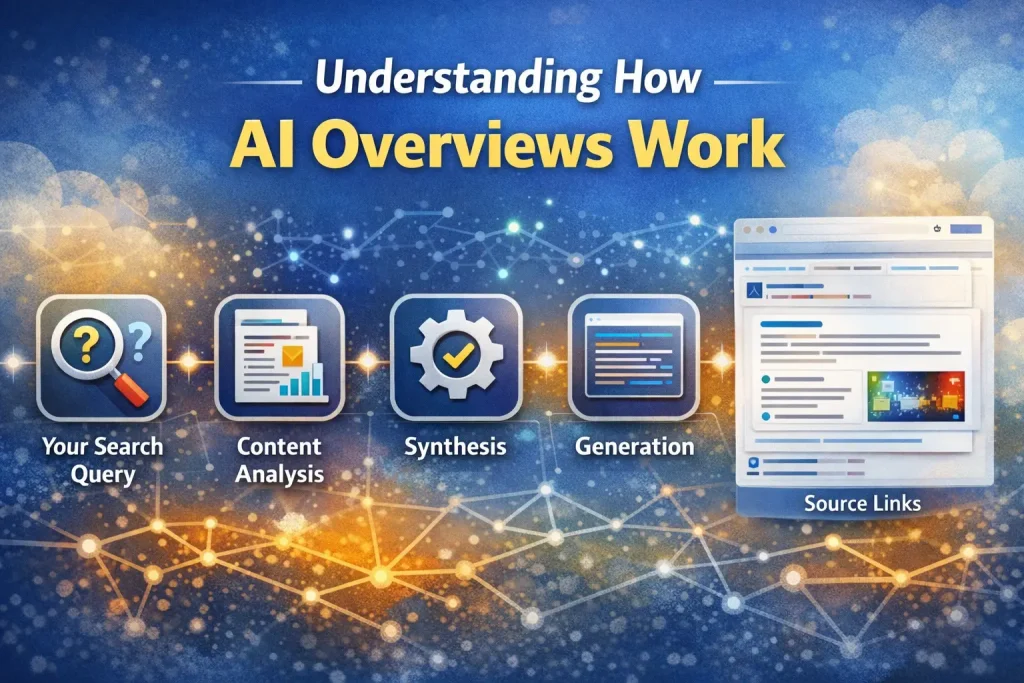
Part 5: Understanding How AI Overviews Work (For Content Creators)
If you’re a website owner or content creator, understanding AI Overviews is important.
How Google Creates AI Overviews
- Your search query → Google understands what you’re asking
- Content analysis → AI reads top-ranking web pages
- Synthesis → AI combines information from multiple sources
- Generation → AI writes a summary in clear language
- Source links → AI includes links to the pages it used
Why Your Website Might Be In (or Out Of) AI Overviews
Your website IS in AI Overviews if:
- Your content ranks in top 10 for the keyword
- Your content is clear and well-structured
- Your content answers the question directly
- Your content has original information
- Your website has good authority
Your website is NOT in AI Overviews if:
- You rank below position 10
- Your content is vague or unclear
- Your content is behind a paywall
- Your content is thin or poorly written
- Your website has low authority
How to Get Your Website Into AI Overviews
- Rank in top 10 – First priority is SEO ranking
- Answer questions directly – Start with the answer, not background info
- Use clear structure – H2/H3 headers, bullet points, tables
- Provide original data – Original research, statistics, examples
- Cite sources – Link to other authoritative sources (shows confidence)
- Include examples – Real-world examples help AI understand context
Part 6: AI Overviews vs Traditional Search Results
What Happens to Web Traffic?
This is the big question: Does appearing in an AI Overview drive traffic or take it away?
The answer: It depends on your content.
Traffic INCREASES if:
- Your link is included in the AI Overview
- Users click your link to read more details
- Your content is more detailed than the overview
Traffic DECREASES if:
- Users find the overview enough and don’t click
- Your content is thin and adds little value
The solution: Make your content so valuable that people click to read more, even after reading the AI Overview.
Examples
Example 1: “How to bake chocolate chip cookies”
- AI Overview shows basic recipe
- User wants detailed tips and tricks
- User clicks your link because your article has 15 expert tips
- ✅ You get traffic
Example 2: “Best budget laptops under $500”
- AI Overview lists 5 budget laptops
- User thinks that’s enough information
- User doesn’t need to click
- ❌ You lose traffic
The strategy: Be comprehensive. Provide so much value that the AI Overview teases people to click.
Part 7: Troubleshooting on Mobile
Mobile is a bit different. Follow these steps:
For iPhone Users
If not seeing AI Overviews:
- Open Settings
- Scroll to “Safari”
- Make sure “Block all cookies” is OFF
- Go to Google.com
- Make sure you’re signed in
- Try searching again
Update the Google app:
- Open App Store
- Search “Google”
- Click “Update” next to Google app
- Restart your phone
For Android Users
If not seeing AI Overviews:
- Open Settings
- Go to “Apps” or “Application Manager”
- Find “Google” or “Google Search”
- Tap “Storage” → “Clear Cache”
- Tap “Clear Data”
- Open Google app again
- Try searching
Update Google Search:
- Open Google Play Store
- Search “Google”
- Click “Update”
- Restart your phone
Frequently Asked Questions About Google AI Overviews
Q1: Is Google AI Overviews always accurate?
A: No. AI Overviews can have mistakes. Google says AI responses “may include mistakes.” Always verify important information by clicking the source links and reading the full articles.
Q2: Can I turn off AI Overviews completely?
A: No. Google doesn’t provide a way to completely disable AI Overviews. They appear automatically for relevant searches. You can clear cache and adjust settings to see fewer of them, but you can’t turn them off entirely.
Q3: Do AI Overviews affect my website traffic?
A: Possibly. If your website appears in an AI Overview, some users might not click through because they got their answer. However, appearing in overviews also increases your visibility and brand awareness. Focus on providing such good content that people click anyway.
Q4: Is AI Overview available in my country?
A: Check the list in Part 1. If your country isn’t listed, AI Overviews aren’t available yet. Google is rolling them out gradually, so check back in a few weeks.
Q5: Why am I not seeing AI Overviews on every search?
A: Google only shows AI Overviews when it thinks they’re helpful. For some searches (like navigational searches or real-time information), traditional results are better. This is intentional.
Q6: Do I need Google Chrome to see AI Overviews?
A: No. AI Overviews work in all major browsers: Chrome, Safari, Firefox, Edge. Chrome isn’t required.
Q7: How do I know if my website is appearing in AI Overviews?
A: Check Google Search Console. Go to “Performance” and look for impressions from “AI Overviews” queries. You can also manually search your own keywords and see if your content appears.
Q8: Does AI Overview show in Google’s Search Generative Experience (SGE)?
A: SGE was renamed to “Google AI Overviews.” They’re the same feature.
Q9: Can I opt-out of my content being used in AI Overviews?
A: Not officially. Google uses all publicly available content for AI Overviews. However, you can add a robots.txt exclusion to prevent it from being crawled, but this also affects regular search results.
Q10: Is AI Overview different from Google’s “Answer Box”?
A: Yes. Answer Boxes have existed for years. They show specific facts (like “population of Denver: 715,000”). AI Overviews are newer and show generated summaries from multiple sources.
Q11: Do AI Overviews work for image searches?
A: Yes. Google offers “Circle to Search” which is similar – you can circle an image and get AI-generated information about it.
Q12: Will AI Overviews replace Google Search entirely?
A: No. Google says AI Overviews are meant to help users explore topics faster, not replace traditional search results. Links are still included and users can click for more details.
Conclusion: You’re Ready to Use Google AI Overviews
You now have everything you need to:
✅ Enable AI Overviews – Know how on every device ✅ Troubleshoot issues – Fix problems when they occur ✅ Customize your experience – Control when they appear ✅ Understand how they work – Know what’s happening ✅ Use them effectively – Get answers faster
Quick Summary
On Desktop: Go to Google.com, search something, look for AI Overview box at top
On Mobile: Open Google app, search something, look for summary below search bar
Not seeing them? Follow troubleshooting steps in Part 3
For content creators: Rank in top 10, answer questions directly, use clear structure
Next Steps
- Try searching for something that would benefit from an overview
- Look for the “AI Overview” label
- Read the summary and click links to learn more
- Get used to this new search experience
Google AI Overviews will only get better and more common. Getting comfortable with them now puts you ahead of the curve.